How to use Trupin
Eight quick steps. For longer answers — where the data comes from, privacy, putting your data on the map — see the FAQ.
1. Find what’s around you
Open the map and it shows what’s nearby. Drag and zoom to look around — each dot is a pin.
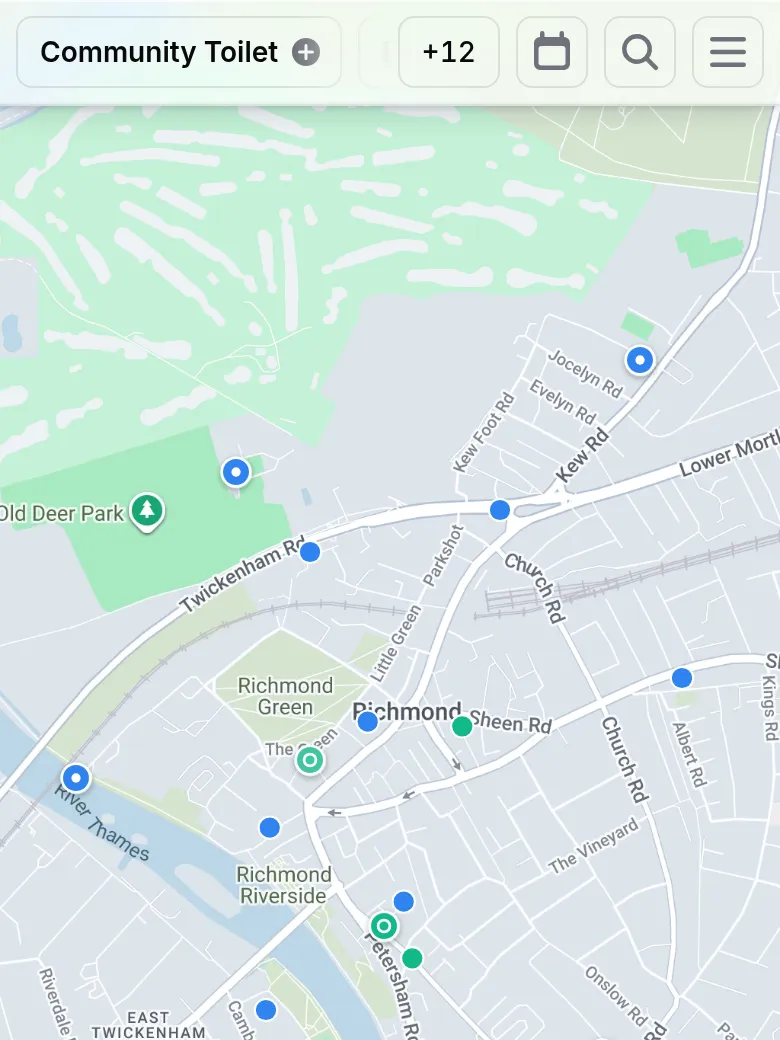
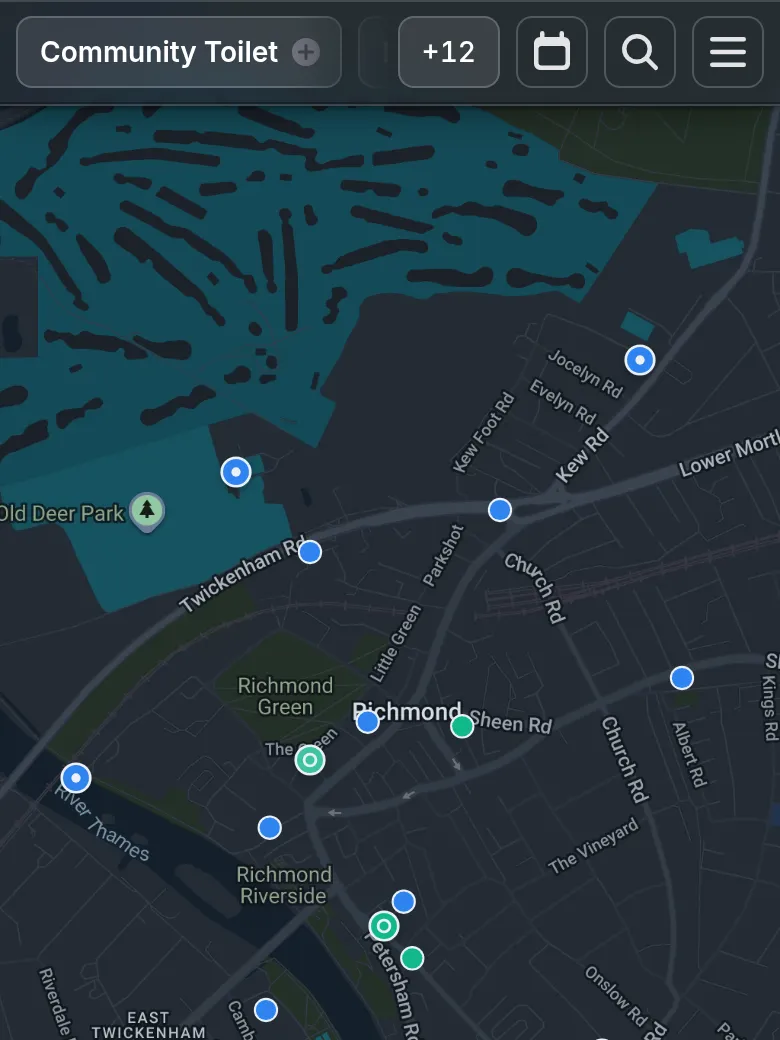
2. Choose what’s on the map
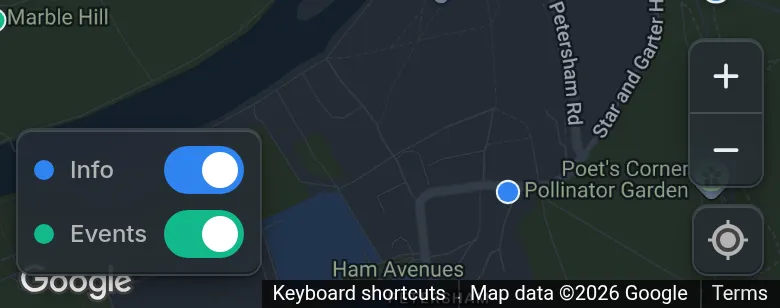
Info pins are permanent things, like a blue plaque or a public toilet. Event pins are things happening at a time. Use the switches in the bottom-left corner to show or hide each.
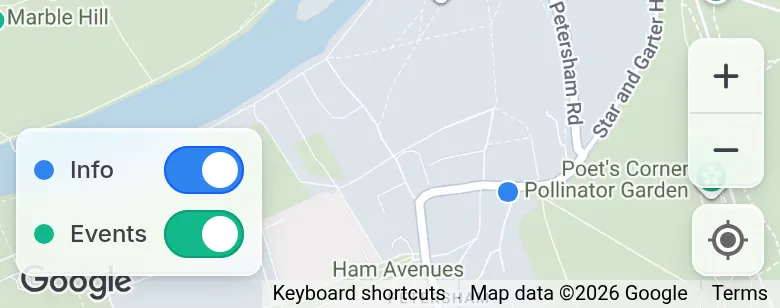
What the pins mean: blue pins are places, green pins are events. A green pin that gently pulses is on now; a grey one has just finished.
3. Filter by tag
Tap a tag along the top to show only those pins; tap another to narrow further. Or tap the magnifying glass, start typing, and pick a suggested tag.
The tags along the top are the most common ones where you’re looking, with the first few kept for events happening this week.
On the web
When an area has more tags than the row shows, the row ends with Type to search all tags. Tap it, or the magnifying glass, to see up to 60 tags for the area, then type to find any tag.
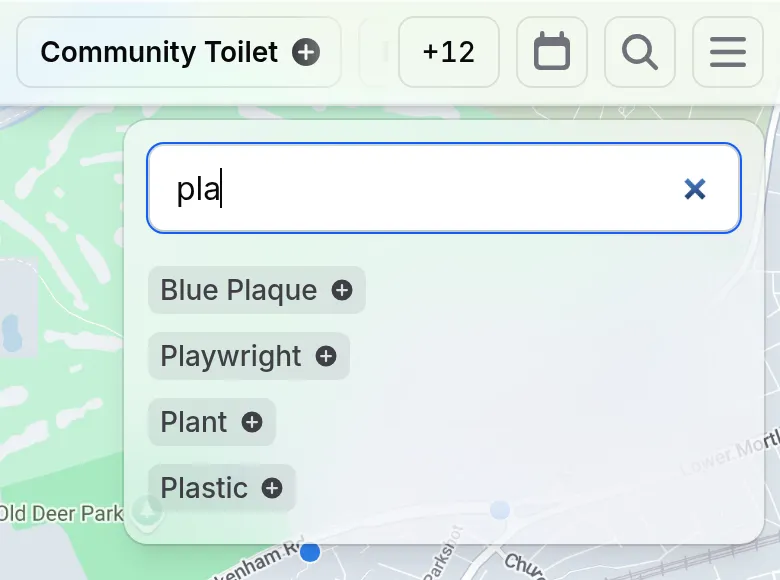
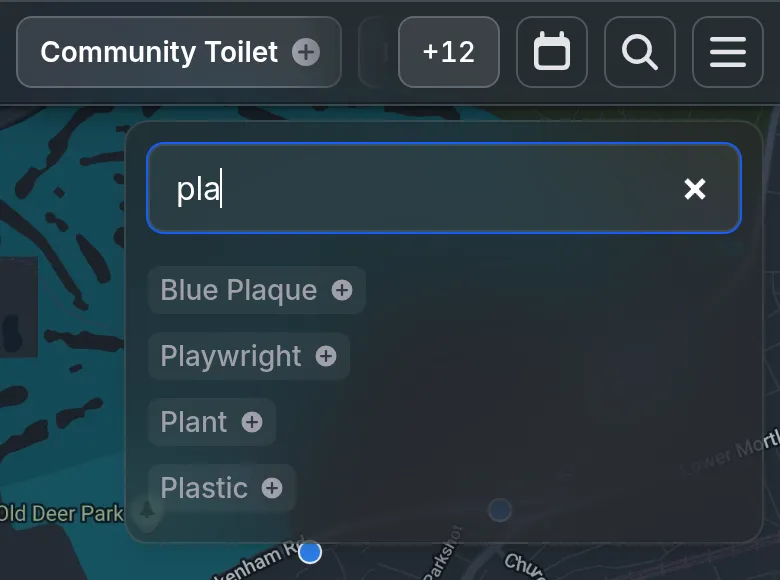
You can also tap a tag on any pin to see all the others like it. The map keeps its place; clear the tag along the top to see everything again.
On the web
To hide a tag instead, touch and hold it (or right-click it). With two or more tags picked, use the All / Any switch to show places with all of them, or any of them.
4. See what’s on when
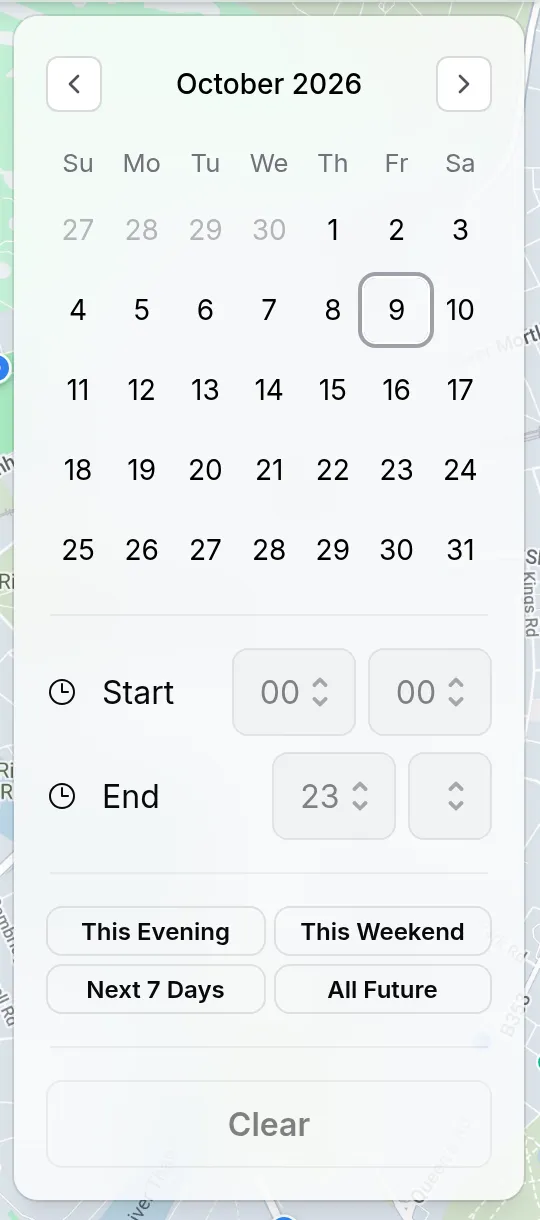
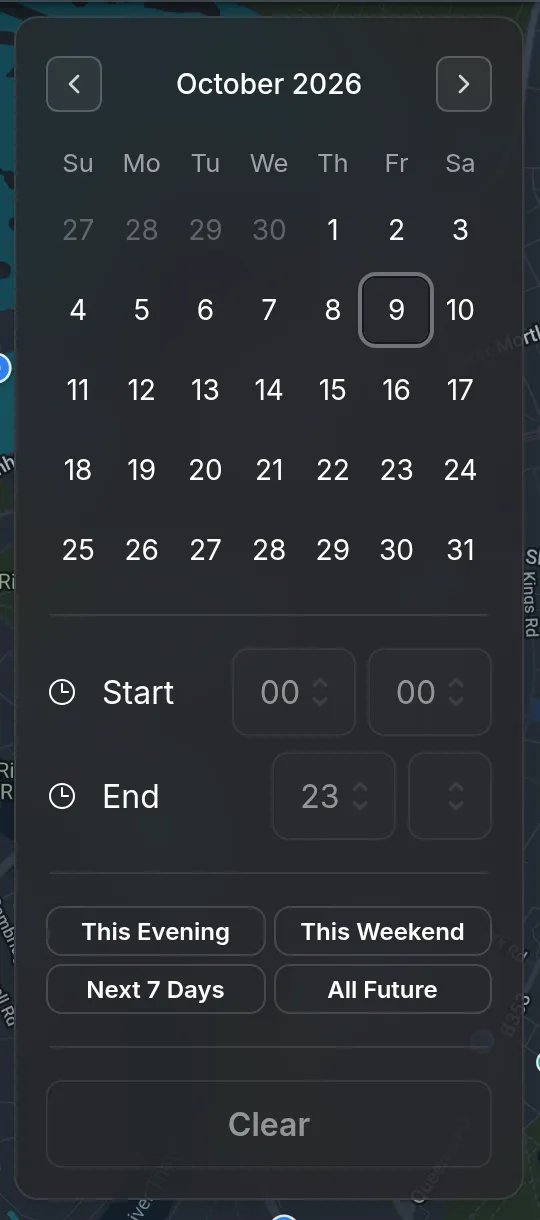
Tap the calendar button and pick a quick option, such as This Weekend, or choose your own dates. The button turns green while a date filter is on.
5. Open a pin
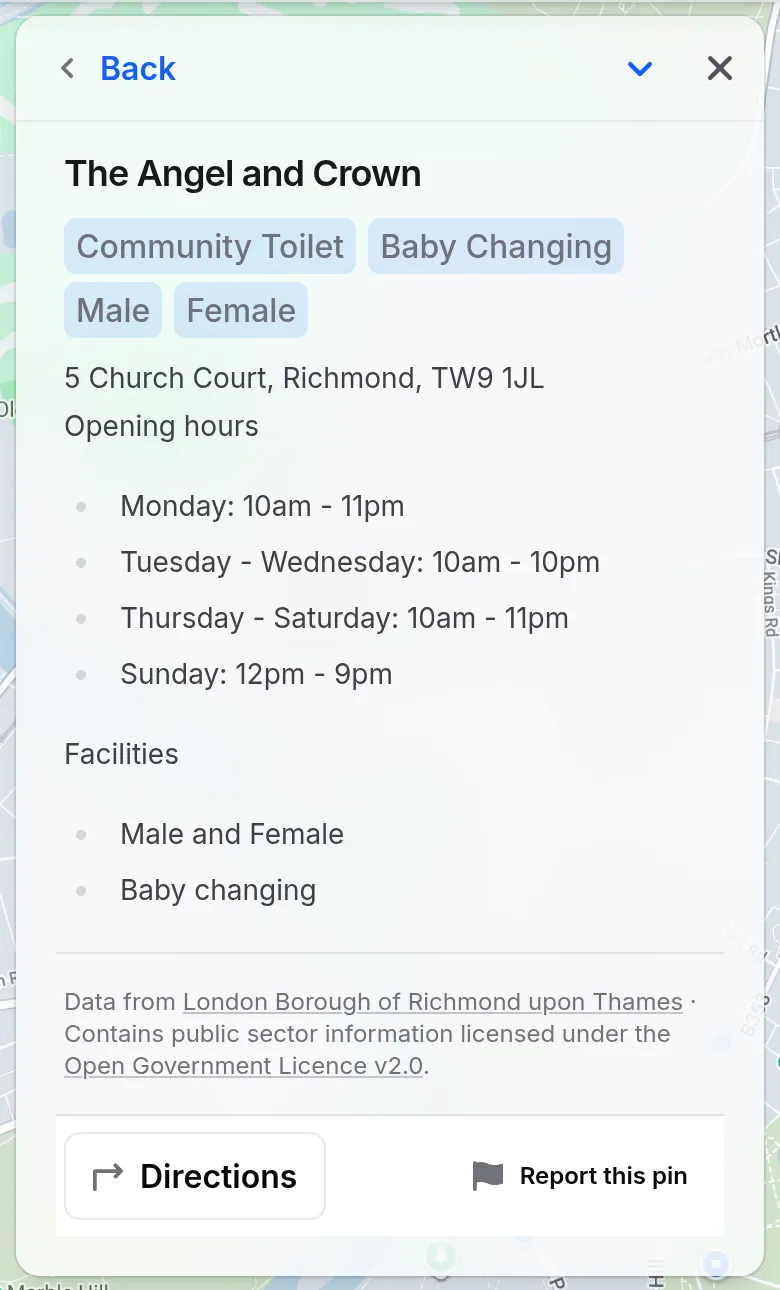
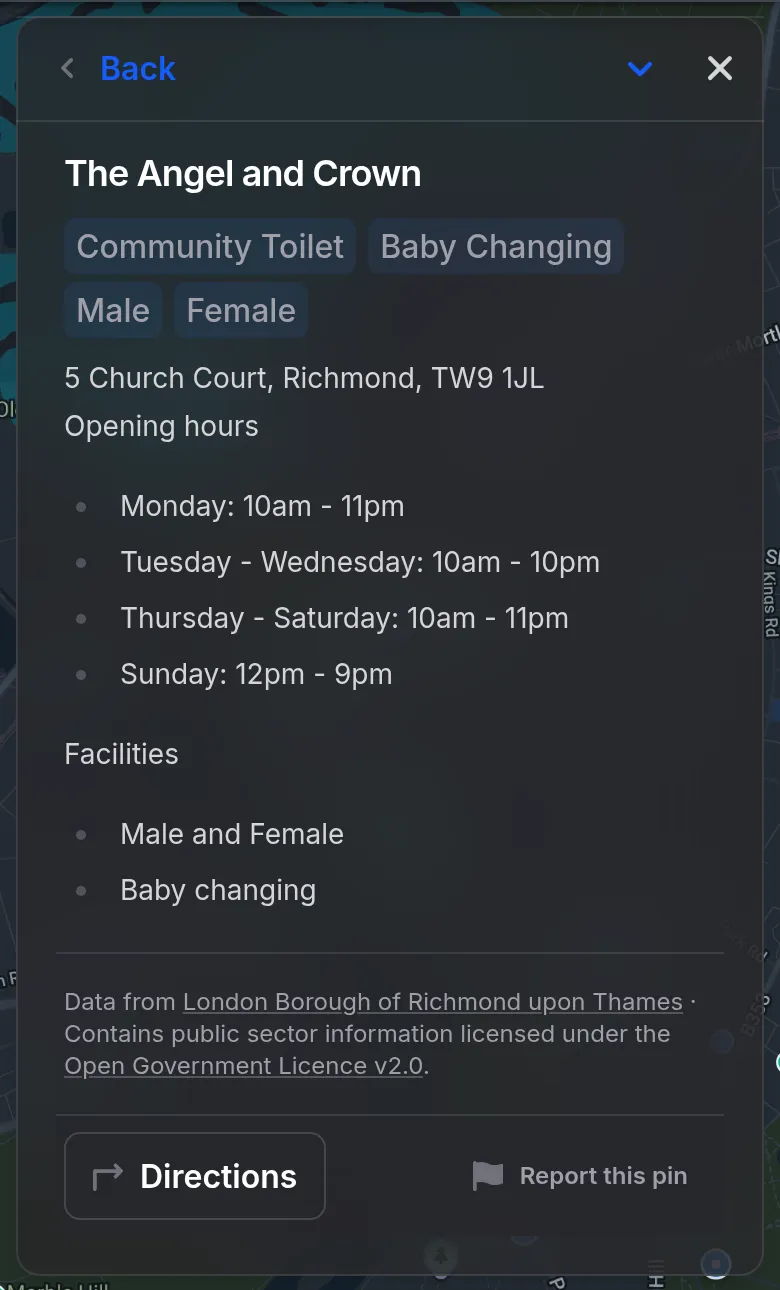
Tap a pin to see what it is, when it’s open or on, and where the information comes from. Directions takes you there.
On the web
To share what you’re looking at, copy the link from your browser’s address bar — it keeps your tags and place.
In the iPhone app
Touch and hold a pin for a quick preview. Share pin sends a link that opens that pin.
6. Busy spots
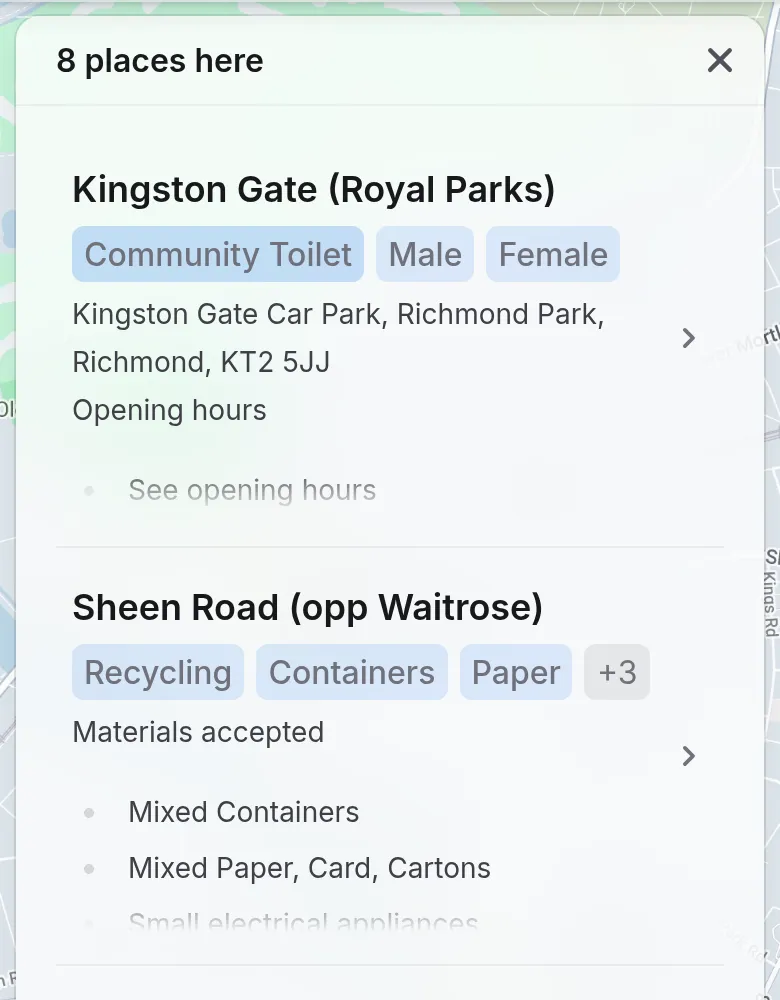
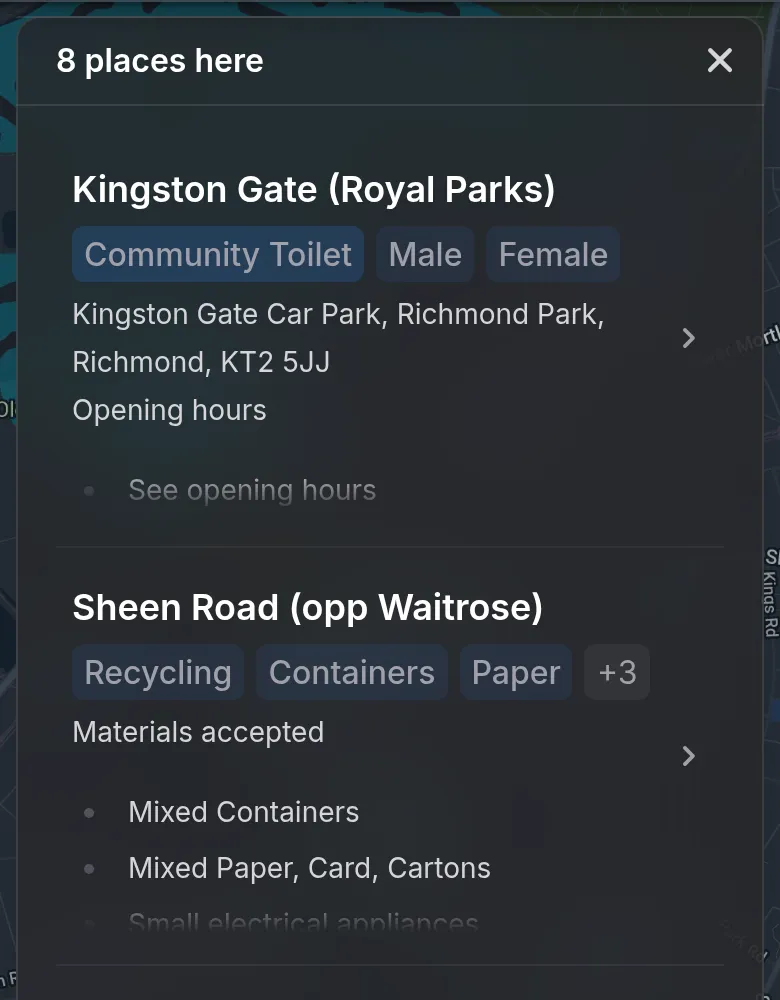
Where several pins share a spot, tap it to see a list of everything there. Pins from verified businesses and contributors come first, then anything on now, then the soonest. Nobody can pay to move up the list.
On the web
Each line shows the name, its tags and when it’s on. An event that repeats, like a weekly quiz, is listed once — tap its date count, such as 4 dates, to see every date.
7. Get it on your phone
On the web
Trupin works in any phone browser at app.trupin.co.uk. On an iPhone, tap Share then Add to Home Screen to keep it one tap away. An iPhone app is on the way.
In the iPhone app
You’re all set. The same map is also on the web at app.trupin.co.uk.
8. Something missing or wrong?
On the web
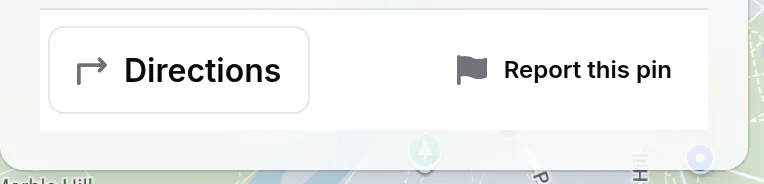
Tap Report this pin at the bottom of a pin to tell us.
If something near you is missing from the map, email simont@trupin.co.uk and we’ll look at it.